Configuration
The configuration is done really simple. Change to the configuration tab and enter your own vat. This will be used for the single validation as default VAT. Next to this, you can choose your default interface. Change the language of your output.
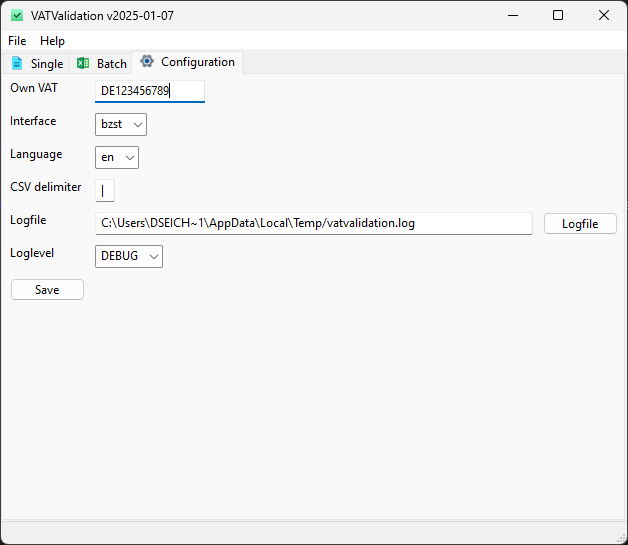
In case you are using CSV, you can choose the delimiter for your import and export files.
Proxy Configuration
VATValidation supports three proxy modes:
none: Do not use a proxy.system: Use proxy settings from the operating system / environment.manual: Use the proxy URL and optional credentials from the configuration tab.
You can validate your current proxy setup directly in the GUI:
- Open the Configuration tab.
- Set Proxy mode.
- If mode is
manual, set Proxy URL (for examplehttp://127.0.0.1:8080) and optional credentials. - Click Test proxy.
The proxy test checks all configured validation endpoints (VIES, HMRC, BZSt, Swiss UID) and shows a success or failure result per endpoint.
Configuration File Keys
The configuration is stored in config.json with the following keys:
| Key | Type | Description | Example |
|---|---|---|---|
delimiter |
string | Delimiter used for CSV import/export | "|" |
interface |
string | Default validation interface to use | "vies" |
language |
string | User interface language | "en" |
logfilename |
string | Path to the log file | "/tmp/vatvalidation.log" |
loglevel |
string | Log level (DEBUG, INFO, WARNING, ERROR) | "ERROR" |
proxy_mode |
string | Proxy mode (system, manual, none) |
"none" |
proxy_url |
string | Proxy URL for manual mode | "http://127.0.0.1:8080" |
proxy_username |
string | Username for proxy authentication | "user" |
proxy_password |
string | Password for proxy authentication | "secret" |
theme |
string | Application theme (system, light, dark) | "system" |